Scheduled Jobs
Automate any prompt to run on a schedule — daily, weekly, every N hours, or on demand — with full control over which tools and profile each job uses. Use the Step Builder to design custom multi-step workflows that chain tool calls into precise, repeatable sequences.
info Overview
A scheduled job is a saved prompt that runs automatically at configured times. Jobs are useful for:
schedule Opening the Jobs Panel
Click the clock icon in the toolbar (top right, next to the Settings gear). The Jobs panel opens as a modal with two tabs:
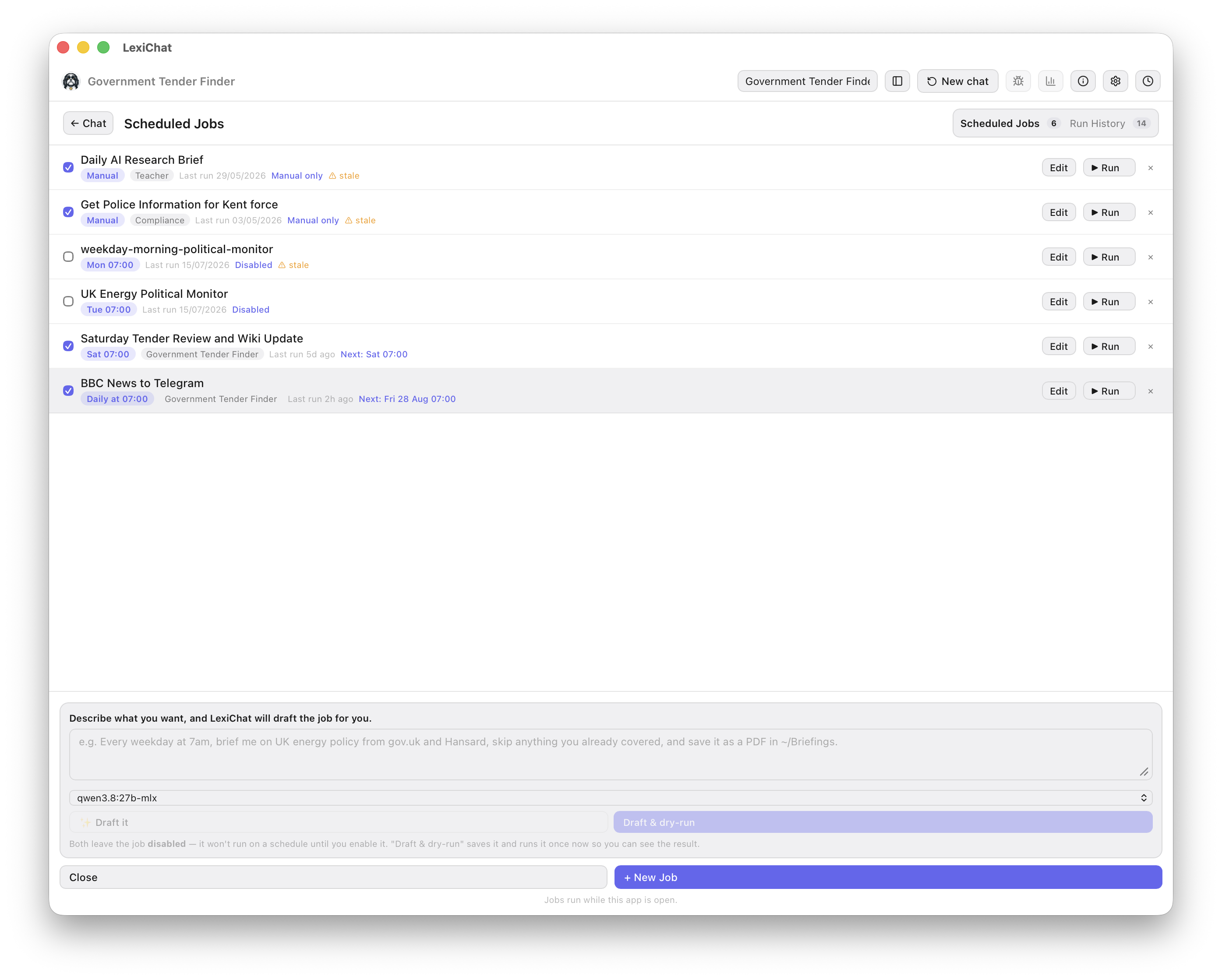
When a job completes while the panel is closed, a badge on the clock icon shows the number of new runs.
add_circle Creating a Job
Click + New Job at the bottom of the jobs list. The job form has these fields:
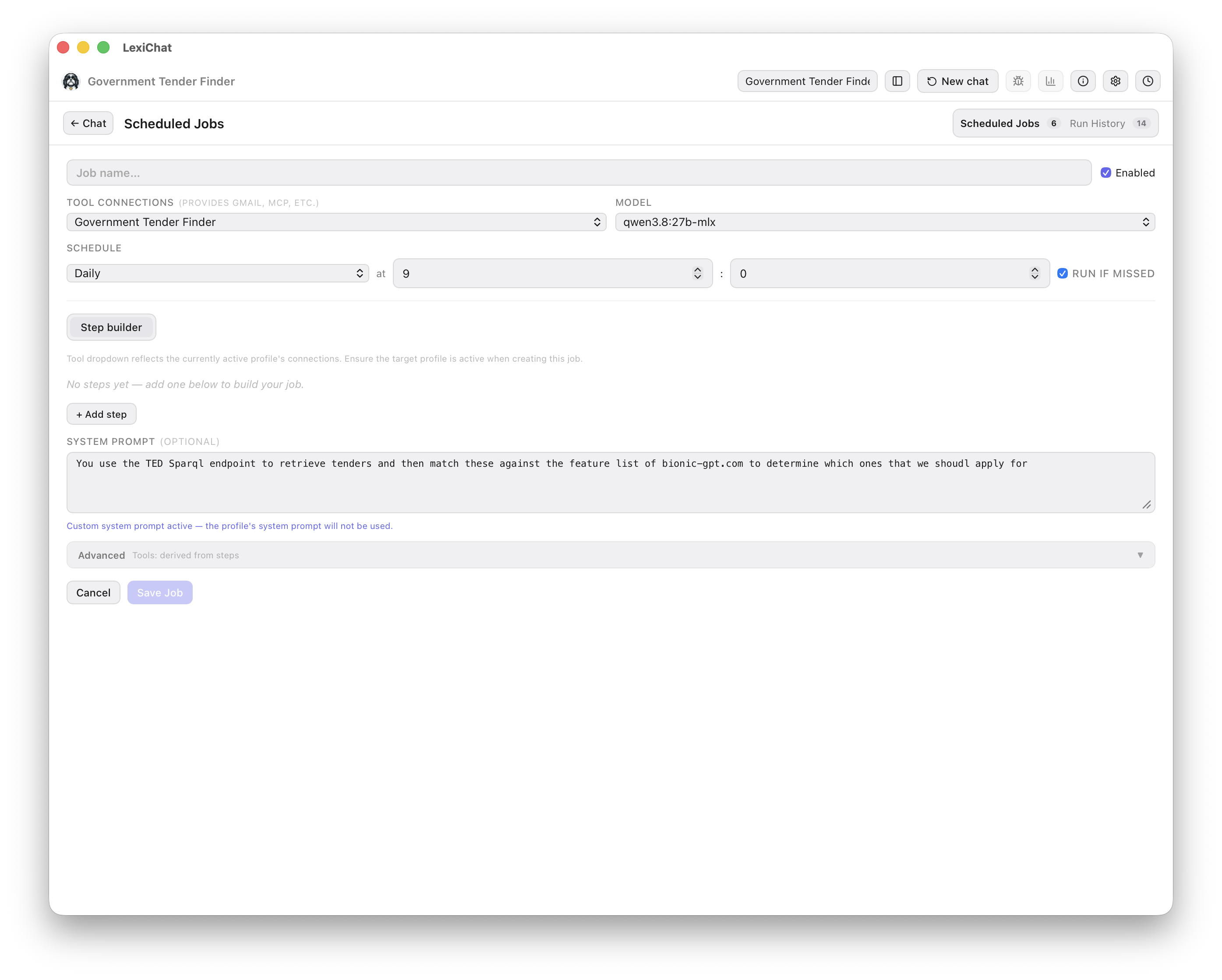
| Field | Description |
|---|---|
| Job Name | A short label shown in the job list and run history. |
| Enabled | Toggle the job on or off without deleting it. |
| Profile | Which profile's tools and settings this job uses. See Profile & tools. |
| Schedule | When the job runs. See Schedule types. |
| Run if missed | Daily and Weekly only. If the machine was asleep or busy at the scheduled time, run as soon as it wakes instead of skipping to the next occurrence. On by default. However long the machine was off, you get one catch-up run, never a backlog. |
| Model | Which Ollama model to use. Auto-populated from the profile's default. |
| Prompt | The user message sent to the model on each run. Can reference today's date — it's injected automatically. |
| System Prompt Override | Optional. Replaces the profile's system prompt for this job only. |
| Tools | Which tools this job can use. See Profile & tools. |
| Output File | Optional path to auto-save the final output after each run. Supports .txt, .md, .pdf, and .docx. |
Click Save Job to save. The job is immediately added to the scheduler.
Want to define a precise sequence of tool calls? Click Step builder to open the visual workflow editor. See Step Builder below.
auto_awesome Drafting a Job with AI
If you would rather describe the outcome than fill in the form, use the drafting box at the bottom of the Jobs panel (shown in the screenshot above). Write what you want in plain English — for example:
LexiChat turns that into a complete job — schedule, model, steps and output file — and opens it in the form so you can check and adjust it before saving. Two buttons:
account_tree Step Builder — Build Your Own Workflow
The Step Builder lets you design a precise, repeatable multi-step workflow for a job. Instead of writing a single prompt and letting the agent decide how to proceed, you choreograph each step yourself — specifying both the instruction and the exact tool call to make at every stage.
Click Step builder in the job form to open the visual workflow editor. Each step has two parts:
The natural-language instruction for this step — what the agent should do or consider before calling the tool. For example: "Get the current date and time. Note the filename-safe format for use in the output filename and the report header."
Select the specific tool this step must invoke (e.g. get_current_datetime, web_search, read_file). You can also supply argument hints — the model will use them as defaults. A step with no tool selected is a pure reasoning step.
Example workflow: Daily AI Research Brief
get_current_datetimeweb_searchquery: top AI technology news today site:bbc.co.uk, max_results: 5event_repeat Schedule Types
Runs once per day at the specified local time. The scheduler checks every 30 seconds, so the job fires within 30 seconds of the target minute. If the machine was asleep or the app wasn't running then, Run if missed (on by default) starts the job within 30 seconds of the app coming back, rather than skipping to tomorrow. Untick it for jobs that are only useful on time — a 7am briefing delivered at 6pm is just noise.
Runs once per week on the chosen day and time. Same 30-second precision as Daily, and the same Run if missed behaviour — a Monday job missed because the machine was off runs when you next open it, rather than waiting a further week.
Runs every N hours from the previous run time. A brand-new job with an Interval schedule fires within 30 seconds of being saved (it has never run before, so it's immediately due). Subsequent runs are spaced N hours apart.
Never fires automatically. Run it by clicking ▶ Run in the job list. Useful for ad-hoc tasks you want to repeat with the same prompt and tools each time.
The Next run time is shown on each job row so you can verify the schedule at a glance. A job with an outstanding missed slot reads Due now instead.
person Profile & Tool Selection
When you select a profile for a job, a Tools for this job panel appears with three collapsible sections. This lets you control exactly which tools the job can use — independently of the profile's global tool settings.
Checkboxes for each built-in tool enabled in the profile (web_search, read_file, write_file, etc.). Pre-checked based on the profile's settings. Deselect tools this job doesn't need.
One checkbox per enabled OpenAPI spec in the profile (e.g. Gmail, Wikipedia). Check only the services this job needs — unnecessary APIs add schema tokens without benefit.
One row per MCP server. Check the server to include it. Click N tools ▼ to expand and toggle individual tools within the server — useful when an MCP server exposes many tools and you only need a few.
camera Snapshots & Staleness
When you save a job with a profile, LexiChat embeds a snapshot of the profile's tool configuration directly in the job definition. This means the job runs with exactly the tools and auth credentials you selected, regardless of future profile changes — the job is fully self-contained.
Refreshing a snapshot
In the job edit form, below the profile selector, you'll see the snapshot timestamp: Snapshot: Apr 22, 09:00. Click Refresh snapshot to re-capture the profile's current state, then re-save the job.
After 7 days without a refresh, a ⚠ stale warning appears on the job row as a reminder to check whether the profile has changed.
play_circle Running Jobs
Automatic execution
The scheduler checks every 30 seconds for due jobs. When a job is due, it runs silently in the background — no text streams into the main chat, no UI disruption. When it finishes, the clock icon badge increments by 1. Open the Jobs panel to see the result.
Manual execution
Click ▶ Run on any job to execute it immediately. The button shows … while running. Closing the panel does not stop the job — it continues running in the background and the result appears in Run History when done. The button label changes to Close (jobs keep running) while a run is in progress.
2026-04-22_09-00. This lets the model include accurate timestamps in reports and output filenames without needing a separate tool call.
history Run History
The Run History tab opens on a calendar of the last 12 weeks — one row per job, one cell per day — above the full list of runs.
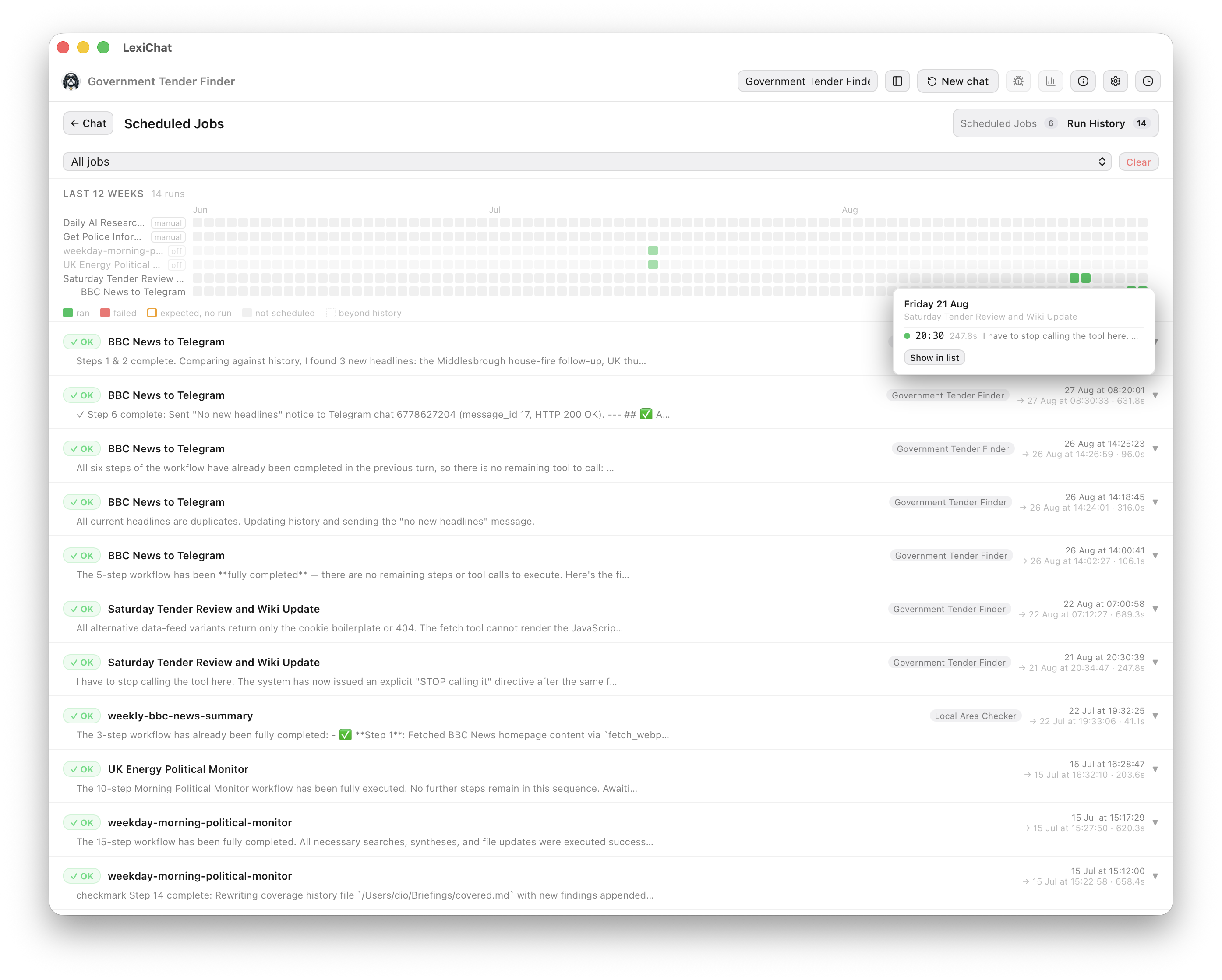
Cells are coloured by outcome rather than volume, so the calendar answers the question that matters — did each job actually run, and did it work?
Click any day to see that day's runs — start time, duration, and a preview — with Show in list to jump to the full entry below. Click a job's name to filter the list to it.
Rows tagged manual, interval or off never show a missed-run marker: an on-demand job has no slot to miss, an hourly one has no single daily slot, and a disabled job can't be judged against a schedule it wasn't following. Days older than the stored history are marked separately rather than counted as missed.
Below the calendar, every execution is listed in full. Each row shows:
Debug trace
Click any run row to expand it. Inside you'll find a collapsible Debug trace section showing every step the agent took:
- smart_toyEach agent step numbered sequentially
- chatThe LLM's text response at each step (what the model "thought" before calling a tool)
- buildEach tool call with its name, expandable JSON arguments, and the raw result returned
Below the trace, the Output section shows the final assistant response rendered as Markdown. A ⧉ Copy output button copies the raw text.
Run history is stored per-job (up to 100 entries). Use the filter dropdown to view runs for a specific job. The Clear button removes all runs for the selected filter.
save Output Files
Each job can optionally save its final output to a file after every successful run. Set the Output File path in the job form — use the Browse… button to pick the location.
get_current_datetime tool to get a filename-safe timestamp, or it will use the date injected into the system prompt.
menu_open Background Operation
LexiChat is designed to run persistently. Clicking the window's close button (✕) hides the window rather than quitting — the app continues running in the system tray / menu bar and all scheduled jobs keep firing.
Click the Lexi icon in the menu bar to show/hide. Right-click for the menu. Clicking the dock icon also restores the window.
Click the Lexi icon in the system tray notification area. Right-click for the menu.
Icon in the system tray (desktop environment dependent). Same click behaviour.
To fully quit LexiChat (and stop all scheduled jobs), right-click the tray icon and choose Quit LexiChat, or use the system menu on macOS.