Image Generation
Create images from a text description — entirely on your own machine. No account, no cloud, no per-image cost. Just ask the assistant to draw or photograph something and it appears in the chat.
info How it works
LexiChat bundles a small, offline image engine (stable-diffusion.cpp) and gives the AI a generate_image tool. When you ask for a picture, the model writes a detailed prompt, the engine renders it locally, and the result is shown inline in the chat — with a Save button.
Everything after your message happens on your computer. Nothing is uploaded.
image Example
This photorealistic image was generated locally from a single chat message, using the RealVisXL model at 1024×1024:
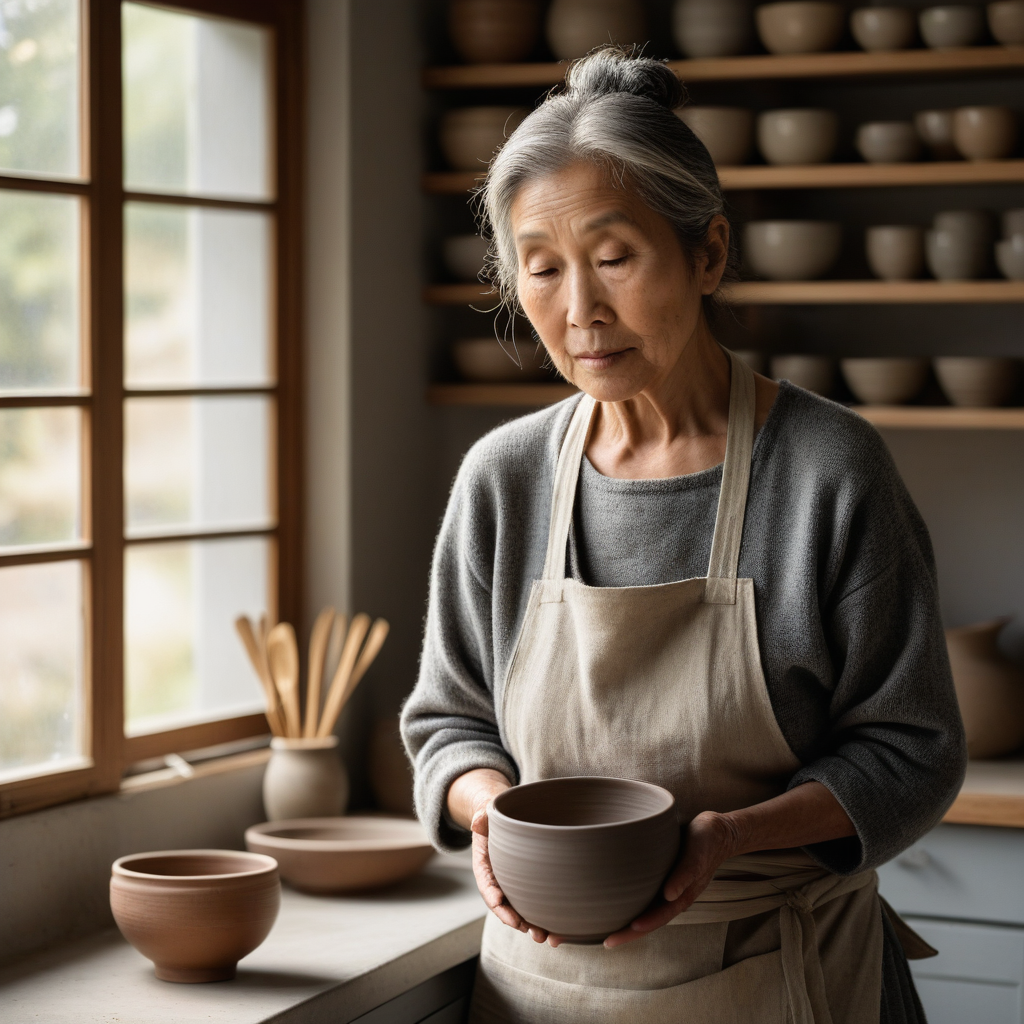
"Generate a photorealistic image of an elderly ceramicist in her sunlit studio, holding a freshly thrown clay bowl. Linen apron over a grey sweater, wisps of grey hair, warm morning light from a window, shelves of pottery behind her slightly out of focus. Shallow depth of field, 85mm lens."
You don't have to write it that carefully yourself — LexiChat automatically expands a plain request like "a photo of a potter in her studio" into a detailed photographic prompt (see Photorealism).
rocket_launch Setup — two steps
-
1Turn it on
Open Admin → Tools and enable Generate Images (offline). It's off by default. A new 🎨 Images tab appears.
-
2Pick & download a model
On the 🎨 Images tab, choose a model from the dropdown and click Download & use. The image engine itself is already built in — you only need a model. The download is a few gigabytes and happens once; the correct quality settings are applied for you.
The engine ships inside LexiChat and installs itself on first launch — there's nothing separate to install. You just download a model.
tune Choosing a model
The picker offers a few curated models. Bigger models look better but use more disk and take longer per image. Pick based on what you're making:
| Model | Best for | Speed | Size |
|---|---|---|---|
| SDXL-Turbo | Fast, good all-round images & illustrations | ~18s | 6.9 GB |
| RealVisXL ★ | Photorealistic photos & people | ~90s | 6.9 GB |
| Stable Diffusion 1.5 | Lower-end machines; smaller & quickest | fast | 4.3 GB |
| SDXL 1.0 (base) | General high quality | slower | 6.9 GB |
Custom URL. The dropdown also has a Custom URL… option — paste a direct link to any compatible .safetensors or .gguf model (SD 1.x/2.x, SDXL, SD 3.5). You can keep several models downloaded and switch between them at any time.
Turbo vs. quality. Turbo models are distilled for speed (4 steps) and are great for quick, casual images — but they are not the right choice for photorealism. For real photos use RealVisXL (or SDXL base), which run more steps and look far more convincing.
photo_camera Photorealism & prompting
When you ask for a photo or a realistic image, LexiChat automatically writes a proper photographic prompt for you — adding camera and lighting cues and a negative prompt that steers the model away from cartoon/CGI looks. So a plain request works well:
"Take a photo of a red fox in fresh snow"
"photograph, photorealistic, a red fox in fresh snow, detailed fur, soft winter light, 85mm, sharp focus…" + negative: "illustration, cartoon, 3d render, cgi, deformed…"
It's smart about intent: ask for a cartoon, logo or watercolour and it deliberately drops the photographic terms so those styles come out clean.
- check Be specific about subject, setting, and lighting — "golden hour", "soft window light", "studio lighting".
- check Name a lens/framing for photos — "85mm portrait", "wide shot", "shallow depth of field".
- check Ask for a specific style when you want one — "watercolour", "pixel art", "flat vector logo".
- check Hands and text are still hard for all local models — expect the occasional imperfection.
settings Advanced settings, explained
Selecting a model sets sensible defaults for these automatically, so you normally never touch them. They live under ▸ Advanced settings on the Images tab for when you want manual control.
How many refinement passes the engine makes. More steps = more detail and coherence, but slower. Turbo models are tuned for ~4 steps; standard models want ~20–30. Beyond ~40 you rarely see improvement.
Output resolution (square). Match it to the model's native size: SDXL-family models (SDXL-Turbo, RealVisXL, SDXL base) look best at 1024; SD 1.5 at 512. Larger sizes add detail but use more memory and time — and going far below native size hurts quality.
How strictly the image follows your prompt. Low (≈1) is required for Turbo models; mid (≈4–7) suits standard models. Too high looks over-saturated and "fried"; too low ignores the prompt. Leave it on the preset value unless you're experimenting.
A description of what to avoid (e.g. "blurry, extra fingers, cartoon"). LexiChat fills this in automatically for photo requests; the AI can also set it per image based on what you ask for.
A number that fixes the random starting point. The same prompt + seed gives the same image — useful for reproducing or tweaking a result. Left unset, every image is different. The AI can set this when you ask for a variation of a specific picture.
Overrides for power users. Normally both are auto-detected — the engine is the bundled one and the model is the one you downloaded. Set Model path to point at a specific file you manage yourself, or sd engine path to use your own build of stable-diffusion.cpp.
Raw command-line flags passed straight to the engine, for advanced setups — e.g. a separate VAE (--vae), a specific sampler (--sampling-method), or text encoders for multi-file models. Most people never need this.
devices Platform support
The image engine is bundled and GPU-accelerated where a prebuilt is available. Generation speed depends heavily on your hardware.
| Platform | Engine | Acceleration |
|---|---|---|
| macOS (Apple Silicon) | Bundled | Metal |
| Windows (x64) | Bundled | Vulkan |
| Linux (x64) | Bundled | Vulkan |
| Intel Mac / Linux ARM | Not bundled | — |
Where no prebuilt engine exists, image generation is simply unavailable and the assistant will say so — everything else in LexiChat works as normal.
lock Privacy
Image generation is 100% local. Your prompts and the images never leave your computer — there is no image API, no account, and no telemetry. The only network access is the one-time model download when you first set it up.
This is the same privacy stance as the rest of LexiChat: the models run on your machine, and your data stays there.